RGBurst - RGB Channel Split & Chromatic Aberration OFX Plugin for Vegas Pro & DaVinci Resolve
Per-channel control of red, green, and blue displacement - in linear or radial mode. Per-channel hue shifts, Lens Dispersion curve, Scale / Overscan. Eight presets from subtle lens fringing to full glitch. Center Protection keeps your subject sharp. GPU-accelerated, 32-bit float and HDR-ready.
Vegas Pro 15+ · DaVinci Resolve Studio 17+
Per-Channel Control
Independent X, Y, blur, and opacity for red, green, and blue - not a single global slider
8 Factory Presets
Lens, Anamorphic, Retro-VHS, Glitch-Light and four more - dial intensity from there
Center Protection
Vignette mask that concentrates the effect toward the edges and keeps your subject clean
32-Bit Float Ready
HDR, ACES, Log - values above 1.0 pass through the float kernel without clipping
Chromatic Aberration and Channel Split - One Plugin
RGBurst moves red, green, and blue independently. Linear mode shifts them in parallel across the frame. Radial mode spreads them from a center point outward - the way a real spherical lens does it. Eight presets handle the common looks; the full parameter set handles everything else.
What It Looks Like
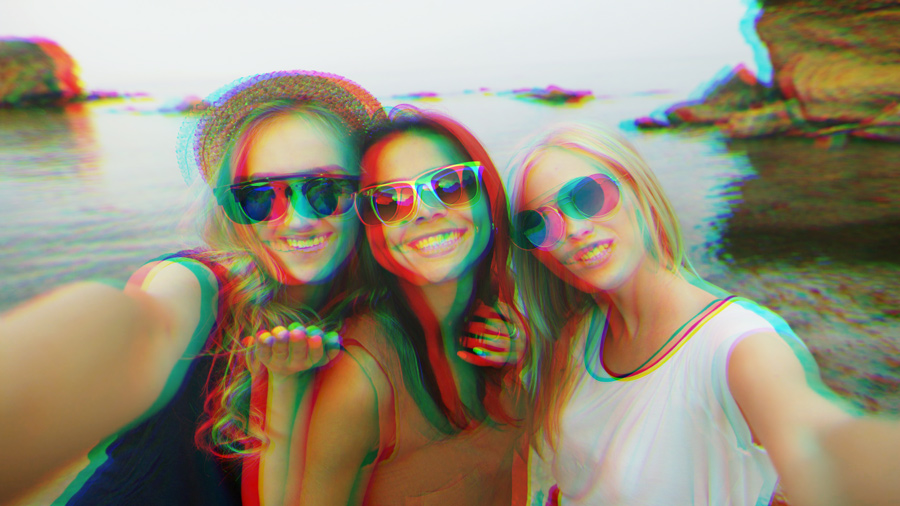
From optically realistic lens fringing to heavy analog tape drift. Each screenshot shows a different preset at medium intensity with Center Protection active.


One Knob for CA. One Preset for Glitch. Neither Is Enough.
RGBurst does two distinct things: it simulates optical chromatic aberration, and it separates RGB channels for creative glitch and prism effects. Most plugins that claim to do either of these give you inadequate control over both.
On the CA side: most tools in video software offer a single offset slider. Some split it into horizontal and vertical. A few let you pick a direction angle. That's typically where it ends. The result is an effect that either looks correct at one specific intensity or doesn't look correct at all. Real lens aberration behaves differently in the center of the frame than at the edges, varies per channel, and often involves channel-specific softness - the blue channel really does resolve slightly softer on older glass. When you put a face in the center of the frame, you generally don't want the effect crossing it.
On the RGB split side: most glitch tools give you a single offset direction, or at best a horizontal and vertical pair that applies equally to all three channels. That produces an effect that reads as "filter" rather than something considered. Genuine RGB channel work - the kind that appears in music videos, title sequences, or intentional retro aesthetics - requires independent control per channel so the displacement looks specific rather than generic.
RGBurst has per-channel X and Y controls for all three colors, independent Gaussian blur per channel, an opacity slider per channel, a Center Protection mask, and both linear and radial displacement modes. There's also a Quick CA radial control (Pixel Offset) that spreads two selected channels outward from the center without touching the fine channel settings. It's a more complete tool than anything else at this price point.
One Plugin, a Lot of Different Workflows
The plugin works at different scales of subtlety, which means it genuinely serves different kinds of editors.
- Wedding and event videographers. The Lens preset at Amount 0.25–0.35 with Center Protection active adds warmth and optical character to clean digital footage. It's the kind of thing that reads as "filmed on nice glass" rather than "effect added in post." Clients notice the look without being able to name it.
- YouTubers and content creators. Retro-VHS and Glitch-Light are one-click presets. Drop the plugin on a clip, pick a preset, and you're done. Both work identically from 480p to 8K - normalized offsets scale automatically with resolution.
- Music video editors. Dreamscape and Prism-Soft use blur and radial spread to create color diffusion that cuts differently from typical camera-style CA. Prism-Soft in radial mode with a high Amount value produces the kind of full-frame color separation that's difficult to achieve with other tools.
- Indie filmmakers and narrative editors. CineScope and Anamorphic give you horizontal channel spread that reads as wide-format optics. Pair with Center Protection and keep Amount under 0.50 for something that strengthens the image without announcing itself.
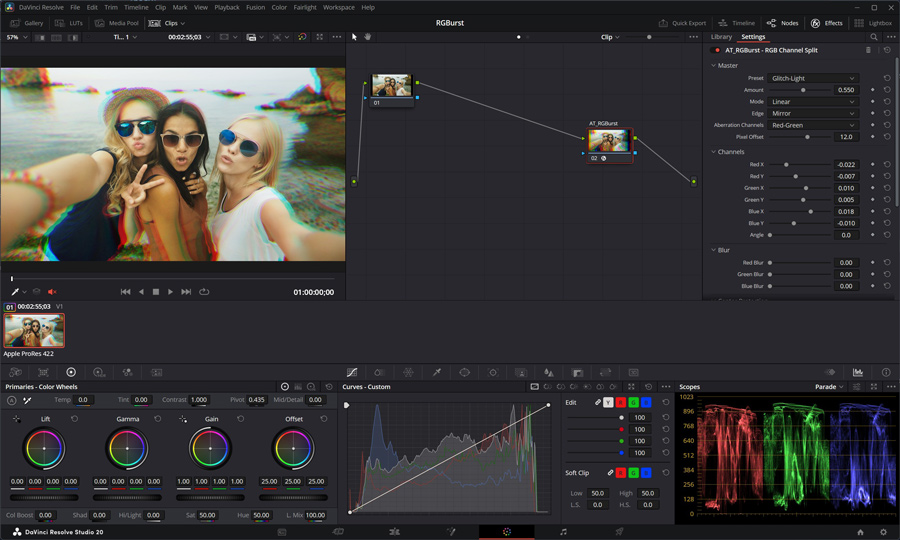
- Colorists in DaVinci Resolve Studio. RGBurst loads as an OFX node on the Color page. Full 32-bit float processing means it's safe to use in ACES and HDR pipelines - values above 1.0 come through untouched. All parameters are keyframeable via Resolve's native keyframe system.
- Vegas Pro editors. Apply in the FX chain, before or after a LUT node. All parameters keyframeable via Vegas's envelope system.
Plugin Interface in DaVinci Resolve & Vegas Pro
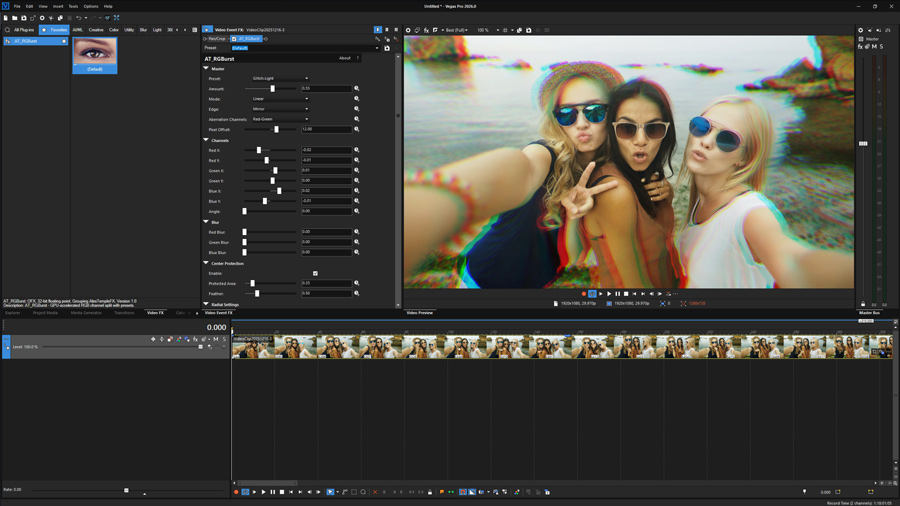
RGBurst loads as a standard OFX plugin - no configuration required. In DaVinci Resolve Studio it appears as an OFX node on the Color page. In Vegas Pro it's available in the Video Event FX chain under AlesTempleFX.
The Controls Other CA Plugins Skip
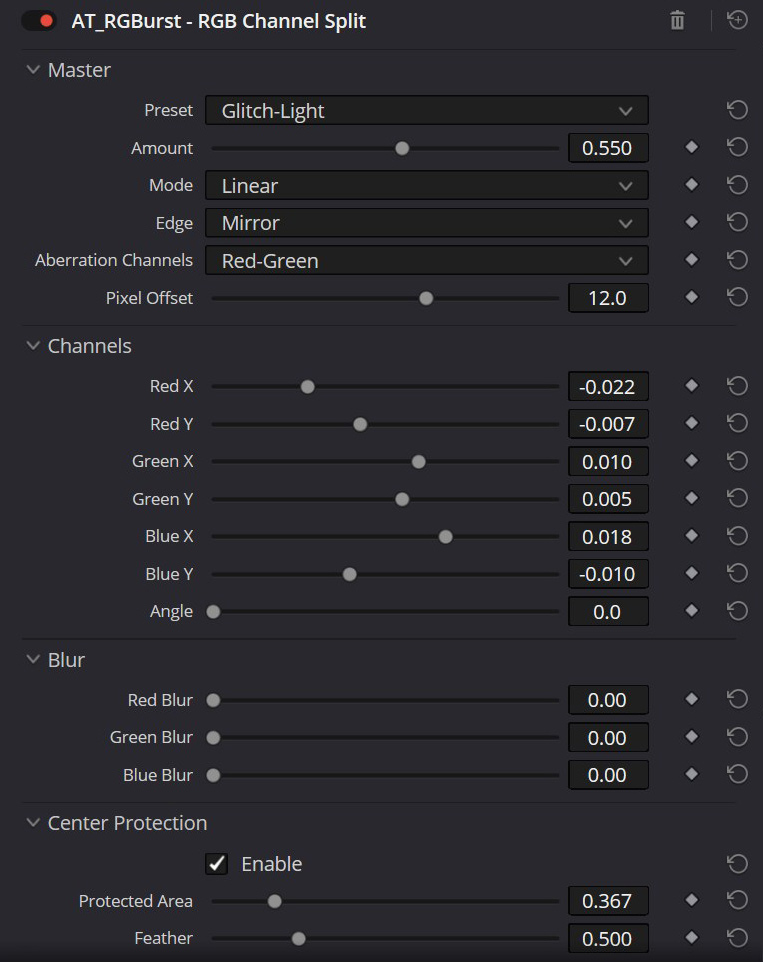
Every parameter is there for a reason. Here's what RGBurst does that most channel split plugins don't.
Linear & Radial Modes
Linear shifts all three channels by the same pixel direction across the whole frame - anamorphic, prism, or diagonal. Radial spreads them outward from a configurable center point, strongest at corners, zero at the center. The way spherical lens aberration actually works.
Per-Channel X/Y Displacement
Red, green, and blue each have their own horizontal and vertical offset controls. You're not limited to equal-and-opposite shifts. Set red to drift left and up while blue drifts right - or any other combination. Normalized values so the same setting works at any resolution from 480p to 8K without adjustment.
Center Protection Mask
A radial vignette that fades the effect from zero at the center to full strength at the edges. Size and softness are both adjustable. With a face in the center of frame, you generally want the fringing at the edges - not crossing the subject. This is the control that makes the effect read as optical rather than digital.
Per-Channel Gaussian Blur
Independent blur for red, green, and blue after displacement. The blue channel on old glass resolves slightly softer - this lets you replicate that. Heavy blur on one channel produces the VHS color smear. Blur only one channel; the unblurred channels provide a sharp reference that makes the blur more readable.
Quick CA (Pixel Offset)
A fast radial spread control that pushes two selected channel pairs away from the center without touching the fine X/Y settings. Three channel pairs: Red-Blue (classic lens CA), Red-Green (warm/cool split), or Green-Blue (cool-toned fringe). Runs on the GPU in Linear mode.
Three Edge Modes
Clamp repeats the edge pixel - clean border, good for most shots. Mirror reflects the image at the boundary when you're pushing displacement far enough to hit the edge. Transparent makes out-of-bounds areas fully alpha-transparent, useful when compositing over another layer.
32-Bit Float / HDR Support
Native processing at 8-bit, 16-bit, and 32-bit float. The float GPU kernel has no upper clamp - scene-linear values above 1.0 survive the displacement and come out the other side intact. ACES, HDR10, and Log workflows in DaVinci Resolve are safe.
OpenCL GPU Acceleration
Runs on any OpenCL 1.2 GPU - NVIDIA, AMD, Intel. In Linear mode with no channel blur active, the full render path runs on the GPU. Radial mode uses the multi-threaded CPU path. Falls back to CPU automatically when no compatible GPU is present. No manual configuration needed.
Per-Channel Opacity
Blend opacity for red, green, and blue independently. Reducing one channel's opacity while keeping the others at 1.0 creates a color-tinted image alongside the displacement effect - useful for specific color cast looks that a displacement-only approach can't produce.
Per-Channel Hue Shifts
Independent hue rotation for the displaced red and blue channels in YIQ color space. Shift the red arm warm (+12° = orange, vintage Leica) or cool (-10° = magenta). Shift the blue arm to cyan (-10° = anamorphic fringe) or violet (+12° = digital glitch). Zero means no shift - fully backward compatible.
Lens Dispersion Curve
Controls how radial CA intensity grows from center to corner. 0 = linear (uniform). +0.8–+1.0 = cubic, glass-accurate (CA concentrates at corners, nearly invisible at center). −1.0 = root curve (barrel-type, heavier center). Lets you match the dispersion signature of specific lens types without manual tweaking.
Scale / Overscan
Scales the image toward the frame center before the effect is applied. Use it to zoom in slightly and hide the fringe artifacts that large channel offsets or heavy Quick CA create at frame edges. Presets that use strong CA include a Scale value below 1.0 by default. Works with both Linear and Radial modes.
From Timeline to Finished Look in Four Steps
The preset system handles the starting point. The fine controls handle the rest.
Apply to clip
In Vegas Pro: Video Event FX → AlesTempleFX. In Resolve: Color page OFX panel → AlesTempleFX.
Pick a preset
Eight presets covering the most common looks. Custom lets you start from zero.
Adjust Amount
The master intensity multiplier. 0.25–0.50 for realism; 0.75–1.50 for stylized looks.
Enable Center Protection
Keeps the subject sharp. Size 0.85, Softness 0.55 is the starting point for most shots.
Eight Starting Points for Any Look
Every preset is fully editable after selection. Pick the one closest to your target and adjust Amount from there.
Lens
Subtle optical CA. The go-to for footage where you want glass character without announcing the effect.
Anamorphic
Horizontal channel spread with a slight blue blur. Reads as wide-format anamorphic optics.
Dreamscape
Soft, diffused color split with channel blur on red and blue. Music video and fashion territory.
Retro-VHS
Heavy tape-tracking color drift. Large channel blur and Mirror edge mode for the full degraded look.
Prism-Soft
Radial mode with color diverging outward from center. Elegant and abstract; works on any content.
Glitch-Light
Asymmetric offsets that read as digital signal corruption. Strong Quick CA radial spread.
Velvet-Noir
Restrained fringing with a tight Center Protection vignette. Moody and controlled.
CineScope
Vertical channel spread with diagonal displacement. Built for wide-format cinematography.
What This Has That Others Don’t
Most CA plugins in the OFX world are one-dimensional: a horizontal offset that pushes red one way and blue the other. A few add a vertical component. That covers the basics, but it doesn't cover the full range of what chromatic aberration can actually look like.
The combination that makes RGBurst different is Center Protection plus per-channel blur plus radial mode. Center Protection is what separates "looks like glass" from "looks like a filter." Per-channel blur lets you simulate the real optical difference in how different wavelengths resolve. Radial mode produces the physically correct pattern of aberration that increases toward the frame edges and disappears at the optical center.
Add 32-bit float support and you have a CA plugin that's safe to use in professional HDR and ACES pipelines - something most alternatives either don't offer or have never tested. DaVinci Resolve Studio colorists working in ACES scene-linear can apply RGBurst without worrying about highlight clipping in the CA calculation.
It's also the only tool with these controls at this price. Most comparable feature sets are bundled into multi-hundred-dollar plugin suites. RGBurst is a dedicated, affordable, single-purpose plugin.
What’s Under the Hood
DaVinci Resolve Studio is required. The free version of DaVinci Resolve does not support third-party OFX plugins.
Up and Running in Two Minutes
Standard OFX installation. No license activation, no account login, no background services.
- Download the plugin archive from your order confirmation email and extract it. Inside you'll find the bundle folder:
AT_RGBurst.ofx.bundle - Copy the entire
AT_RGBurst.ofx.bundlefolder to the standard OFX plugins directory:
C:\Program Files\Common Files\OFX\Plugins\
Administrator permissions are required. The final path should be:
C:\Program Files\Common Files\OFX\Plugins\AT_RGBurst.ofx.bundle\Contents\Win64\AT_RGBurst.ofx - Restart Vegas Pro or DaVinci Resolve Studio. The plugin loads automatically at startup.
-
In Vegas Pro: select a video event → click Video Event FX → find AlesTempleFX category → select AT_RGBurst → Add.
In DaVinci Resolve: Color page → OpenFX panel → AlesTempleFX → drag AT_RGBurst onto a node. - Select a preset from the dropdown or set all controls manually. Adjust Amount to taste. Enable Center Protection for realism.
The Complete RGB Channel Split Toolkit
- ✓Per-channel X/Y displacement for red, green, and blue
- ✓Linear and radial modes
- ✓Center Protection mask - keeps subject sharp
- ✓8 factory presets
- ✓OpenCL GPU acceleration + CPU fallback
- ✓32-bit float - HDR and ACES safe
- ✓Resolution-independent: 480p to 8K without changes
- ✓Per-channel hue shifts & Lens Dispersion curve
- ✓Scale / Overscan to hide edge fringing
14-day refund policy · Secure payment via PayPal
Common Questions
No. OFX plugins require DaVinci Resolve Studio. The free edition doesn't load third-party OFX plugins - this is a Blackmagic Design limitation, not something that can be worked around.
Linear moves all three channels by a fixed pixel distance in the same direction across the whole frame. It's good for prismatic and anamorphic looks. Radial spreads the channels outward from a center point - zero effect at the center, maximum at the corners. Radial is how real spherical lens CA behaves, and it's the mode that pairs best with Center Protection for portrait and narrative work.
In Linear mode with all channel blur at 0, the plugin runs on the GPU and renders in real time at 1080p on most modern hardware. Radial mode always uses the CPU path - the per-pixel radial calculation is handled there. Channel blur combined with Center Protection also falls back to CPU. If you're dropping frames, switching from Radial to Linear mode is typically the biggest single performance change.
Yes. RGBurst processes 8-bit, 16-bit, and 32-bit float projects natively. In 32-bit float mode, the plugin uses a dedicated GPU kernel with no upper clamp - scene-linear values above 1.0 (specular highlights, sky, fire in ACES) pass through intact. It's safe to use in ACES and HDR pipelines in DaVinci Resolve.
Radial mode always renders on the CPU - the per-pixel radial dispersion calculation is handled by the multi-threaded CPU path. In Linear mode, the plugin runs entirely on the GPU. The one exception: if channel blur and Center Protection are both active at the same time, it falls back to CPU due to operation ordering. Pixel Offset (Quick CA) runs on the GPU in Linear mode and does not force a CPU fallback.
All parameters are keyframeable in both Vegas Pro and DaVinci Resolve. In Vegas Pro, use the standard FX envelope system. In DaVinci Resolve, use the Keyframes panel on the Color page. Animate Amount over time to create a building CA effect, or keyframe individual channels for a glitch hit.
Not yet. The current version is Windows-only (64-bit). macOS support is planned for a future update.
The license is per-user. You can install it on all the machines you personally edit on.
There's no free trial. If the plugin is defective or doesn't work as described on a supported system, email info@alestemple.net within 14 days of purchase with your order details and a description of the issue. Full terms at alestemple.net/refund-policy.html.
Every Lens Splits Light. Now Yours Does Too.
Per-channel RGB displacement, hue shifts, Lens Dispersion, Scale / Overscan, Center Protection, 8 presets, 32-bit float — the complete chromatic aberration toolkit for Vegas Pro and DaVinci Resolve colorists.
Buy Now - $39.95Vegas Pro 15+ · DaVinci Resolve Studio 17+